A few years ago, designing a simple YouTube thumbnail used to take me hours. I’d sit in front of my laptop moving text around, testing random colors, downloading fonts, and still end up unhappy with the final result.
The worst part was not even the designing itself — it was starting from a blank screen.
That changed when I started testing AI design tools.
At first, I honestly thought most AI tools were overhyped. Some generated weird-looking images, while others felt too automated and generic. But after trying different platforms for blog graphics, social media posts, thumbnails, Shopify banners, and client work, I realized AI tools can actually save a massive amount of time when used properly.
The key is knowing which tools are genuinely useful and which ones are just trending for no reason.
Some AI design apps are perfect for beginners with zero experience. Others work better for professional designers who already use software like Photoshop or Illustrator.
I’ve personally tested many of these tools on real projects, including:
- Website banners
- Instagram posts
- YouTube thumbnails
- Product mockups
- Logo concepts
- Blog featured images
Some surprised me in a good way. Others taught me expensive lessons about relying too much on automation.
If you want to speed up your graphic design workflow without making your designs look robotic, these AI tools are worth exploring.
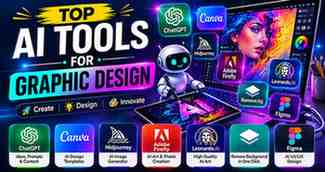
1. Canva
This is probably the AI design tool I use the most personally.
At one point, I was creating blog featured images manually in Photoshop. It worked, but honestly, it was slow for daily content work.
Then I started using Canva Official Website and the workflow became much easier.
What Makes Canva So Useful
The AI features inside Canva help with:
- Automatic layout suggestions
- Background removal
- AI image generation
- Magic resize for social media
- Text generation ideas
One thing I really like is how beginner-friendly it feels. You don’t need professional design experience to make decent-looking graphics.
Real Use Case
I regularly use Canva for:
- Tech blog featured images
- Pinterest pins
- Instagram posts
- Shopify banners
- YouTube thumbnails
Mistake I Made
In the beginning, I relied too heavily on Canva templates. My designs started looking identical to everyone else’s.
Now I customize:
- Fonts
- Spacing
- Colors
- Icons
That small effort makes designs look more original.
2. Adobe Express
I tried Adobe Express when I wanted something faster than Photoshop but more flexible than basic mobile apps.
It feels like Adobe made a simplified version of professional design software for regular users.
AI Features I Found Helpful
- AI text effects
- Automatic background removal
- Quick social media templates
- AI-generated image tools
The mobile version is surprisingly smooth too.
Best For
- Social media creators
- Small businesses
- Fast content creation
- Students
My Experience
I used Adobe Express for creating quick Instagram story graphics during a busy project week. Instead of spending 30 minutes per design, I finished them in under 10 minutes.
That time difference matters a lot when posting daily content.
3. Adobe Photoshop with AI Features
Photoshop used to feel intimidating when I first learned it.
Too many buttons.
Too many tools.
Too many tutorials.
But Adobe’s newer AI features genuinely make editing easier now.
AI Tools Inside Photoshop
Features like:
- Generative Fill
- AI object removal
- Background extension
- Smart selections
can save hours of manual editing.
Real Example
I once had a product image where the background looked messy.
Normally, cleaning it manually would take quite a while.
Using AI selection tools:
- Background removed in seconds
- Shadows cleaned automatically
- Final image looked professional quickly
Important Lesson
AI speeds up editing, but you still need design sense.
I’ve seen people overuse AI effects and end up with unrealistic or awkward graphics.
4. Figma
I originally started using Figma for website layouts, but AI plugins inside Figma made the workflow much faster.
Why Designers Love It
Figma works especially well for:
- UI/UX design
- App mockups
- Website wireframes
- Team collaboration
AI Features and Plugins
Some AI-powered plugins help with:
- Auto-generating layouts
- Placeholder content
- Color palette suggestions
- Image generation
My Real Experience
While designing a homepage layout, I used AI plugins to quickly generate placeholder sections and spacing ideas.
Instead of starting from scratch, I had a usable layout within minutes.
That helped me focus more on creativity instead of repetitive setup work.
5. Leonardo AI
This tool surprised me honestly.
I first tried it for creating blog graphics and expected generic AI images, but the results were much better than many free generators I tested earlier.
What It’s Good At
- AI art generation
- Gaming-style graphics
- Concept illustrations
- Thumbnail backgrounds
- Character designs
Best Feature
The level of detail is impressive when prompts are written properly.
Real Problem I Faced
At first my prompts were terrible.
I typed things like:
“Cool tech image”
and got random results.
Once I started describing:
- Lighting
- Colors
- Camera angle
- Background style
the image quality improved massively.
6. Midjourney
This is one of the most talked-about AI image tools for a reason.
The first time I used Midjourney, I genuinely spent hours experimenting with prompts because the artwork looked incredibly realistic.
What Makes It Special
Midjourney creates:
- Cinematic artwork
- Detailed illustrations
- Fantasy scenes
- Creative concept art
Many YouTube creators and designers use it for:
- Thumbnail ideas
- Poster concepts
- Creative inspiration
Important Reality
It’s powerful, but there’s a learning curve.
Your first few prompts will probably produce weird results.
That’s normal.
7. Remove.bg
This tool saved me so much time while creating product graphics.
Before using it, I manually removed backgrounds in Photoshop using selection tools. Sometimes it took forever with messy hair or detailed edges.
Then I found Remove.bg Official Website.
What It Does
Automatically removes image backgrounds in seconds.
Best For
- Product photos
- Profile pictures
- YouTube thumbnails
- E-commerce graphics
Real Experience
I used it while creating Shopify product images and honestly couldn’t believe how quickly it handled difficult edges.
Not perfect every time, but extremely useful.
8. Looka
I tested Looka while helping a friend create branding ideas for a small online store.
What It Helps With
- Logo concepts
- Brand color ideas
- Font combinations
- Quick mockups
It’s especially useful for beginners who have zero design direction.
Important Advice
Don’t just download the first AI-generated logo and use it immediately.
Customize it.
Adjust colors.
Change fonts.
Make it unique.
Otherwise many logos start looking similar.
9. Khroma
Color selection used to frustrate me badly.
I’d waste too much time trying random combinations.
Then I tried Khroma.
Why It’s Useful
It uses AI to generate color combinations based on preferences.
This helped me:
- Improve website designs
- Create cleaner thumbnails
- Maintain brand consistency
Small detail, but colors affect design quality more than most beginners realize.
How AI Tools Changed My Workflow
Before AI tools:
- More repetitive work
- Slower editing
- Longer idea generation
- Manual background removal
Now:
- Faster mockups
- Quicker experimentation
- Easier content production
- Better productivity
But AI didn’t replace creativity.
It simply removed many boring tasks.
That’s the biggest difference.
Common Mistakes Beginners Make With AI Design Tools
Overusing AI Effects
Some people add:
- Excessive filters
- Unrealistic backgrounds
- Too many generated elements
Result:
Designs start looking fake and messy.
Depending Entirely on Templates
Templates help, but copying them exactly makes content look generic.
Always personalize designs.
Ignoring Basic Design Principles
AI tools cannot fully fix:
- Bad spacing
- Poor typography
- Cluttered layouts
Learning simple design basics still matters.
Using Low-Quality Prompts
This is huge with AI image generators.
Specific prompts produce much better results than vague instructions.
Which AI Tool Felt Most Useful Overall?
For daily practical work:
Canva
because it balances:
- Simplicity
- Speed
- AI features
- Ease of use
For advanced editing:
Adobe Photoshop
still remains extremely powerful.
For AI-generated artwork:
Midjourney
and
Leonardo AI
gave some of the most impressive results during testing.
Final Thoughts
AI graphic design tools genuinely changed how fast creative work gets done.
But after using them for real projects, I learned something important:
The best results happen when AI assists creativity instead of replacing it.
The tools work best for:
- Saving time
- Generating ideas
- Removing repetitive tasks
- Speeding up editing
They don’t automatically make someone a great designer overnight.
What still matters most is:
- Creativity
- Simplicity
- Good layout choices
- Understanding your audience
If you’re just starting, don’t try every AI tool at once.
Pick one or two.
Practice consistently.
Experiment with real projects.
That hands-on experience teaches more than watching endless tutorials ever will.
