
The first AI video I ever made looked absolutely terrible.
The voice sounded robotic, the transitions felt awkward, and one scene randomly generated a person with six fingers holding what looked like a melted laptop. I remember watching the final export thinking:
“People are actually using this?”
At that point, AI video tools felt more like internet gimmicks than real creative tools.
But I kept experimenting.
A few weeks later, after testing different apps, fixing prompts, and learning basic editing tricks, I finally created a short AI-assisted video that actually looked decent. Not Hollywood-level amazing. But good enough that people watched it, shared it, and asked how it was made.
That’s when I realized something important:
AI video creation works best when you treat AI like an assistant, not a magic button.
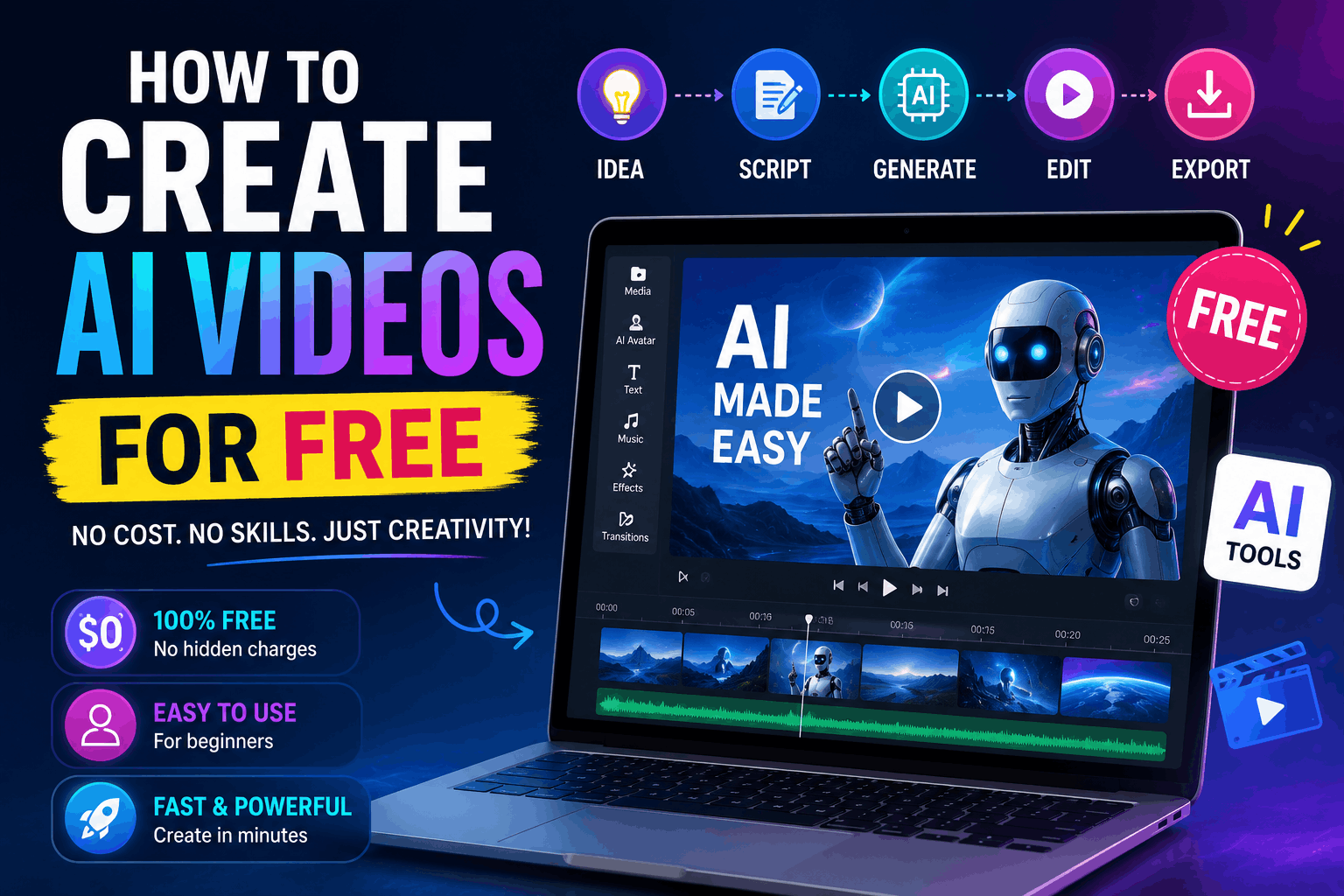
If you’re trying to create AI videos for free — whether for YouTube, TikTok, Instagram Reels, or just creative projects — here’s what genuinely works from real experience.
What AI Video Creation Actually Means
A lot of people think AI instantly creates perfect videos from one sentence.
Technically, some tools try to do that.
But most creators use AI to help with specific parts of the process like:
- Script writing
- Voiceovers
- Captions
- AI visuals
- Editing
- Background music
- Scene generation
That’s the realistic approach.
The best videos usually combine:
- AI tools
- Human editing
- Creativity
- Good storytelling
That combination works much better than fully automated content.
Why People Are Using AI Videos So Much
Honestly, speed is the biggest reason.
A few years ago, creating videos required:
- Expensive software
- Strong editing skills
- High-end computers
- Hours of manual work
Now you can create decent videos with:
- A phone or laptop
- Free AI tools
- Basic editing knowledge
That changes things completely for beginners.
Especially content creators working alone.
Step 1: Choose Your Video Type First
Before touching any AI tool, decide what kind of video you want.
This matters more than people realize.
Different AI tools work better for different styles.
Popular AI Video Types
- YouTube Shorts
- TikTok videos
- Motivational edits
- Tech tutorials
- AI storytelling videos
- Faceless YouTube content
- Product promotions
- Educational clips
When I started, I made the mistake of trying everything at once.
Bad idea.
Pick one style first.
Step 2: Use AI for Video Ideas and Scripts
This is honestly where AI helps me the most.
Instead of staring at a blank page wondering what to create, I use ChatGPT for:
- Video ideas
- Hooks
- Script outlines
- Short captions
- Video structure
Example Prompt
“Write a 60-second YouTube Shorts script about free AI tools for students in a casual tone.”
The first scripts I generated sounded robotic because my prompts were too generic.
Adding details improved results massively.
Mention:
- Tone
- Audience
- Platform
- Video length
That changes the output dramatically.
Step 3: Create AI Voiceovers for Free
This part shocked me the most.
AI voices used to sound painfully fake.
Now some tools sound surprisingly realistic.
Free AI Voice Tools Worth Trying
Real Lesson I Learned
The voice isn’t the main issue.
The script is.
Even realistic AI voices sound awkward if:
- Sentences are too long
- Tone feels unnatural
- Writing sounds robotic
Short conversational sentences work best.
Step 4: Generate AI Video Clips or Images
Now comes the fun part.
You can either:
- Generate AI video clips
- Create AI images and animate them
- Use stock footage with AI editing
Tools I Tested
Runway ML
One of the most impressive AI video tools I’ve used.
It can:
- Generate video clips
- Remove backgrounds
- Extend footage
- Create AI motion effects
Some results genuinely look futuristic.
Pika Labs
Good for generating short animated clips from prompts.
Especially useful for:
- Fantasy scenes
- Animated visuals
- Creative transitions
Leonardo AI
Technically more image-focused, but excellent for generating visuals used inside videos.
I often create:
- Backgrounds
- Characters
- Thumbnail concepts
- AI art scenes
then animate them later.
Step 5: Edit Everything Together
This is where the video actually starts feeling real.
And honestly, editing matters more than AI generation itself.
Even average visuals can look good with:
- Fast pacing
- Good captions
- Smooth transitions
- Clean audio
Best Free Editing Apps
CapCut
Probably the easiest free AI-friendly editor right now.
I use it constantly for:
- Auto captions
- Reels
- Shorts
- Quick edits
The AI subtitle generation alone saves huge amounts of time.
DaVinci Resolve
This is more advanced but incredibly powerful.
Good if you eventually want professional editing skills.
Step 6: Add Background Music
Music changes everything.
A boring clip suddenly feels cinematic with the right sound.
Free AI Music Tools
You can generate music based on:
- Mood
- Genre
- Video type
Pretty useful for creators avoiding copyright issues.
Step 7: Create Captions
This matters especially for:
- Shorts
- TikTok
- Instagram Reels
Many people watch videos muted.
Captions help massively.
Best Free Option
CapCut’s auto-caption feature works surprisingly well.
Not perfect though.
I once uploaded captions where:
“AI tools”
became:
“eye tools”
Always review subtitles manually.
My Real AI Video Workflow
Here’s the exact kind of workflow I personally use now.
Step 1
Use ChatGPT for:
- Ideas
- Hooks
- Scripts
Step 2
Generate visuals using:
- Leonardo AI
- Runway ML
Step 3
Create voiceover using:
- ElevenLabs
- CapCut text-to-speech
Step 4
Edit in CapCut.
Add:
- Captions
- Zoom effects
- Music
- Transitions
Step 5
Export for:
- TikTok
- YouTube Shorts
- Instagram Reels
That’s honestly enough to start creating decent AI-assisted content.
Common Mistakes Beginners Make
Depending Fully on AI
This creates generic videos quickly.
The best videos still need:
- Human editing
- Personality
- Storytelling
AI helps speed things up, but creativity still matters.
Making Videos Too Slow
Attention spans online are brutally short.
Especially on Shorts and TikTok.
Quick pacing usually performs better.
Using Overly Robotic Voices
Some AI voices still sound unnatural.
Choose:
- Casual tone
- Natural pacing
- Short sentences
That improves realism massively.
Ignoring Thumbnails and Hooks
Even great AI videos fail if:
- The first few seconds are boring
- The thumbnail looks weak
People decide quickly whether to keep watching.
Are Free AI Video Tools Actually Worth It?
Honestly, yes.
Especially for beginners who:
- Don’t own expensive cameras
- Can’t hire editors
- Want to test content ideas quickly
AI dramatically reduces the barrier to entry.
A few years ago, making videos consistently required:
- Heavy editing knowledge
- Powerful computers
- Large budgets
Now one person can create surprisingly good content using mostly free tools.
That doesn’t mean AI replaces creativity.
The people getting the best results are usually the ones mixing:
- AI tools
- Human storytelling
- Good editing
- Real personality
That balance is what makes videos feel interesting instead of robotic.
The biggest thing AI changed for me wasn’t video quality.
It was speed.
Instead of getting stuck for hours on repetitive editing tasks, I could focus more on ideas, pacing, storytelling, and actually finishing videos consistently.
